
AstroPlotorium User Manual
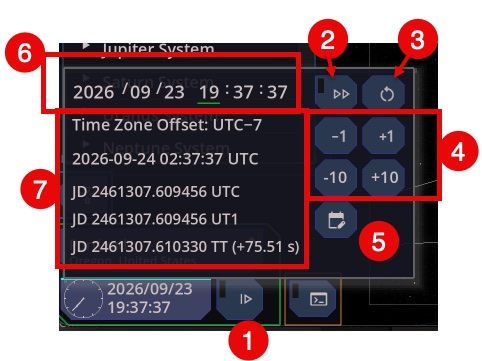
The clock at the bottom left is the observer’s local time: the time zone of the selected place, with daylight saving when that zone uses it.
(7) Open it to see the offset from UTC, the UTC time, and the Julian date.
Planets, the Moon, altitudes, and rise and set all use this simulation time. Changing your computer’s clock is not required. The \ key, and the reset button, snap the simulation back to “now.”
The step unit
Inside the clock popup, choose the unit the step buttons (6) use:
- Year, month, day, hour, minute, or second.
(4) - +1 and −1 add or subtract one unit. +10 and −10 add or subtract ten.
The keyboard does the same with fixed amounts, which do not follow this unit:
[and]step 10 minutes.- Shift+
[and Shift+]step 60 minutes. - Ctrl+
[and Ctrl+]step 1 minute.
Play
(2) Play runs time forward in the unit you selected. It keeps going from the current simulation instant. It does not jump to the wall clock.
(1) Resume snaps to the real current time, switches the unit to seconds, and runs in real time.
Stop pauses play. Reset (\) sets “now” and does not by itself stop a clock that is already playing.
Use a day or an hour step to watch the Moon move, a planet cross a constellation, or the stars wheel through the night. Use seconds when you want the live sky.
(5)Enter a date
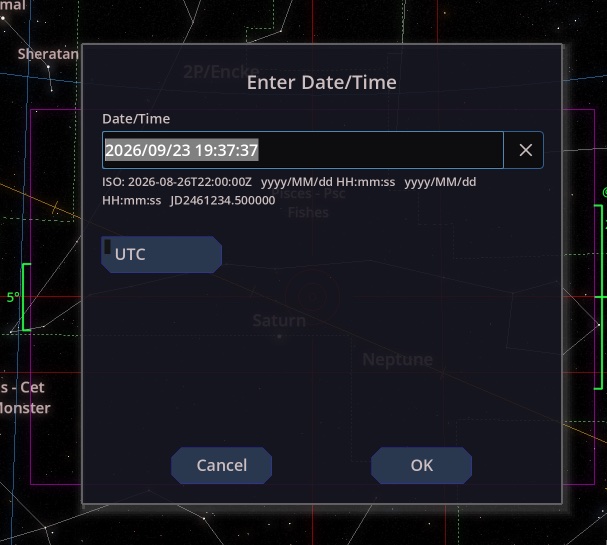
The clock popup includes a control to type a date and time. The value you enter is local time at the observer. The app converts it to UTC for the ephemeris.