AstroPlotorium User Manual
First launch
The center of the window is the sky. The default observer is Portland, Oregon, and the clock starts at the current time. Until you set your own place, rise and set times and the planetarium horizon belong to Portland.
Set your location
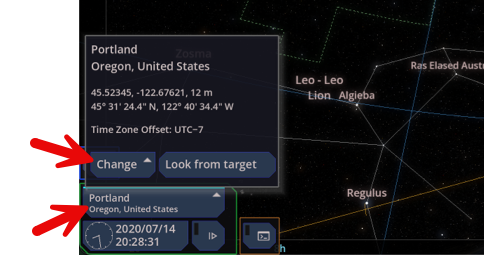
- At the bottom left, click the location button. It shows the current place.
- Click Change.
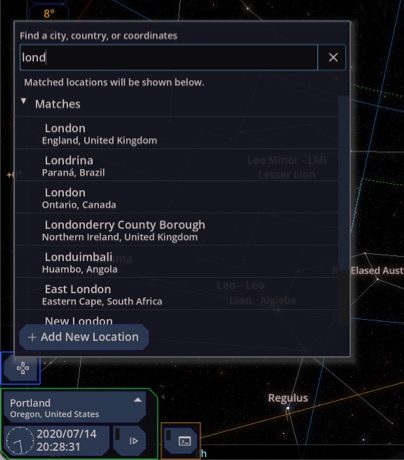
- Type a city name in the search box at the top and select a match.
- Or paste latitude and longitude from a map. Accepted forms include decimal degrees (
45.52, -122.68), degrees-minutes-seconds, and the degree style copied from common map apps. - A pasted coordinate can be used for this session only. To keep it, use Add and give it a name, an optional city line, elevation in meters, and a time zone. Saved places appear under My Locations, where you can edit or delete them.
The location button then shows your place. Local time in the app follows that place’s time zone, including daylight saving when the zone provides it. It is not the time zone of the computer if those differ.
A first look
- Open the Main View menu at the top left and choose 2D Planetarium. You are standing at your site, looking at the local sky. The ground and the horizon band belong to this view.
- Press Space and type
Moon,Saturn, or a star name, then choose it from the list. The camera turns to that object. Its name appears at the top right. - Open Main View again and choose 3D Universe. The same target is now a body in the scaled solar system, when it is a planet, moon, asteroid, or comet.
- Choose 2D Planetarium again. You are back under your sky. If the object is below the horizon at this date and time, the view still points at it, but the ground may hide it. Step the clock, or turn on Land See-through, until it is up.
That loop — pick a target, then change the main view — is the basic way to use the app.
If the sky looks empty
- The magnitude limit may be too bright. At the bottom right, open the magnitude button and raise Visible Magnitude (a larger number shows fainter stars).
- Star brightness and the Bortle sky-brightness scale also live in the bottom-right menus.
- Photo view (
V) hides the panels on purpose. PressVagain, orEsc, to bring the controls back.