AstroPlotorium User Manual
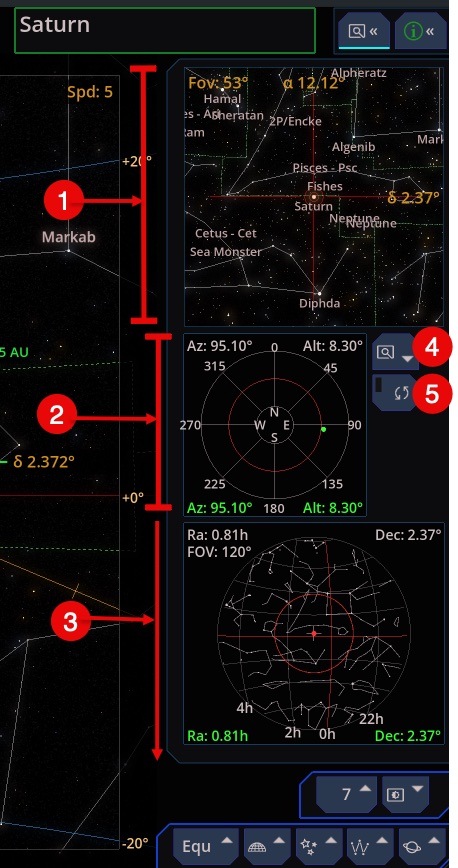
The button at the top right opens a column of helpers. They watch the same scene as the main view. They are not a second clock.
(1) Secondary 3D view
A smaller copy of the 3D scene with its own field of view and its own look direction. Drag and zoom inside that pane without moving the main camera. Use it to keep a wide sky in the small pane while the main view is a close-up, or the other way around.
The small pane labels its own field of view and the equatorial aim point. Grids stay on the main view so the small pane is not filled with the main view’s grid lines.
This pane hides while a galaxy simulation fills the screen.
- (4) Change the FOV of the secondary view
- (5) Check this to syncronyze the main view’s camera movement. Otherwise, the view remain the selected object.
(2)Polar chart
A plot of the local sky in altitude and azimuth. The red line is the horizon. The mark for the camera is green when you are looking above the horizon and red when you are looking below it. Use it in the planetarium when a narrow field of view has left you unsure which way is up, or whether the target has risen.
(3)Planisphere chart
An all-sky chart with the main view’s footprint drawn on it. Use it to see which constellation the telescope field sits in. This chart is the side helper. The full-window 2D Planisphere main view is a separate star wheel. See Ephemeris and planisphere.