AstroPlotorium User Manual
AstroPlotorium can take commands from an AI assistant on this computer. The assistant gets the same abilities as a script: the view, the clock, the place, the layers, and the target. It drives the app that is already open. It does not browse the rest of your files.
The command names, angles, time units, and layer ids are the ones in Scripting. A turn, a zoom, or an animated time step finishes before the next tool returns, so a screenshot taken afterward shows the settled view.
Turn it on
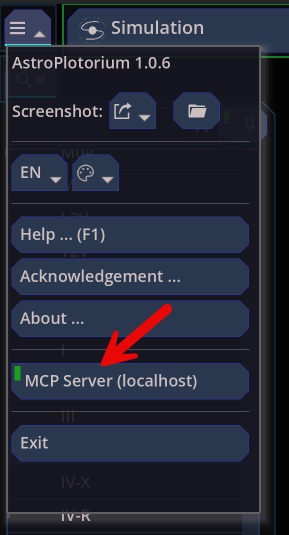
In the home menu, check MCP Server (localhost). The server listens only on this machine, at:
http://127.0.0.1:8765/mcp
It is off until you check that item. The choice is remembered. Uncheck it, or quit the app, and the port closes. The app has to be running, with the item checked, before an assistant can connect.
Leave the address as it is unless you have set a different port. If you have, use that port in the URL.
By default the server does not ask for a password. If this install requires a token, the assistant must send it as Authorization: Bearer followed by the token.
A cloud connector cannot reach 127.0.0.1. Keep the server on this computer. Do not forward port 8765 to the internet. If you use a token, treat it like a password for the session.
Cursor
Cursor can use the local address directly. Put this in the project file .cursor/mcp.json, or in ~/.cursor/mcp.json. If both files define astroplotorium, the project file wins. You can also add it under Cursor Settings → MCP.
{
  "mcpServers": {
    "astroplotorium": {
      "url": "http://127.0.0.1:8765/mcp"
    }
  }
}
With a token:
{
  "mcpServers": {
    "astroplotorium": {
      "url": "http://127.0.0.1:8765/mcp",
      "headers": {
        "Authorization": "Bearer YOUR_TOKEN"
      }
    }
  }
}
If the server does not appear, turn it on in Cursor’s MCP settings. AstroPlotorium must already be running with MCP Server (localhost) checked.
Claude Desktop
Claude Desktop starts local tools as programs. It does not call http://127.0.0.1 from a URL entry. Install Node.js 18 or newer so that npx is on your PATH, then add a bridge.
Settings → Developer → Edit Config opens the file. Create it if it is missing.
| System | File |
|---|---|
| macOS | ~/Library/Application Support/Claude/claude_desktop_config.json |
| Windows | %APPDATA%\Claude\claude_desktop_config.json |
| Linux | ~/.config/Claude/claude_desktop_config.json |
Add the astroplotorium entry beside any servers you already have. Replacing the whole file drops those other servers.
{
  "mcpServers": {
    "astroplotorium": {
      "command": "npx",
      "args": [
        "-y",
        "mcp-remote",
        "http://127.0.0.1:8765/mcp",
        "--allow-http",
        "--transport",
        "http-only"
      ]
    }
  }
}
-y lets npx run without a prompt. --allow-http allows this local address. --transport http-only matches the way the app accepts commands.
With a token, pass the header through an environment variable so the space in Bearer … survives:
{
  "mcpServers": {
    "astroplotorium": {
      "command": "npx",
      "args": [
        "-y",
        "mcp-remote",
        "http://127.0.0.1:8765/mcp",
        "--allow-http",
        "--transport",
        "http-only",
        "--header",
        "Authorization:${AUTH_HEADER}"
      ],
      "env": {
        "AUTH_HEADER": "Bearer YOUR_TOKEN"
      }
    }
  }
}
Quit Claude Desktop completely, including the menu-bar or system-tray process, and open it again. The tools show as a hammer on the message box.
Claude Code
Claude Code can use the address directly:
claude mcp add --transport http astroplotorium http://127.0.0.1:8765/mcpIn ~/.claude.json or a project .mcp.json, a URL entry includes "type": "http":
{
  "mcpServers": {
    "astroplotorium": {
      "type": "http",
      "url": "http://127.0.0.1:8765/mcp"
    }
  }
}
What the assistant can do
Ask in ordinary language. The tool names below are what the assistant calls.
| Tool | What it does |
|---|---|
goto, view |
Turn to a named object |
set_fov |
Field of view, in degrees or an angle string |
set_layer, list_layers |
Show or hide a layer, or list the ids |
set_constellation_visible, list_constellations, set_constellation_preset |
One constellation, the list, or all / none / zodiac |
set_asterism_visible, list_asterisms, set_asterism_preset |
The same for asterisms (all / none) |
set_option, list_options |
A slider or a menu choice |
set_time |
Jump to an ISO UTC time |
add_time |
Step the clock. unit is Y, M, D, h, m, or s. duration_ms of 0 jumps; omit it for a short glide |
set_auto_update_unit |
The unit used by play and by the step buttons |
time_play, time_stop, time_resume, time_reset |
Fast forward, pause, real time, or snap to now |
time_increment, time_decrement, time_increment10, time_decrement10 |
The +1 / −1 / +10 / −10 buttons |
set_location, get_location |
City, saved place, or latitude and longitude |
set_look_from, get_look_from |
The body you are looking from |
set_view_mode |
Main View, by the same names as the menu |
set_orbit_altitude_km |
3D Orbit camera height, in kilometers |
set_orbit_iss_track |
3D Orbit: a simplified ISS-like ground track |
set_orbit_fly |
3D Orbit: unlock flying |
set_coordinate_system |
Equatorial, ecliptic, galactic, or horizontal |
look_at_radec, look_at_equatorial, look_at_ecliptic, look_at_galactic, look_at_horizontal |
Aim by angle |
camera_rotate |
Turn the view by a drag, in degrees |
follow_target, follow_view_from |
Track the selection, or follow Earth or the Sun |
show_navigator, show_property_list, show_charts |
The side panels and the charts |
set_display_view |
default, photoreal, or presentation |
set_secondary_view_fov, set_secondary_view_sync |
The secondary pane |
wait, wait_for_user |
Pause, or wait until you click Next in the app |
get_state, set_state |
Read the view, or restore the keys you send |
get_target_property |
The property list of the current target |
calc |
Property list for a named object, without selecting it. Optional UTC date |
calc_validate |
Compare one planet or moon with NASA Horizons. Needs the network |
hms_to_deg, deg_to_hms |
Hour angle to degrees, and the reverse |
dms_to_deg, deg_to_dms |
Degrees, minutes, and seconds to a number of degrees, and the reverse |
search, help |
Name matches, and the command list |
screenshot |
Save a PNG and hand the picture back. Optional type: default, photoview, presentation, presentation_chart |
run_script |
Run a JavaScript program with the same commands as the script console |
run_script does not turn Presentation on by itself. Ask for Presentation, or press P, when you want the toolbars hidden. wait_for_user leaves a button on the sky until you click it, the same way a tour does.