AstroPlotorium User Manual
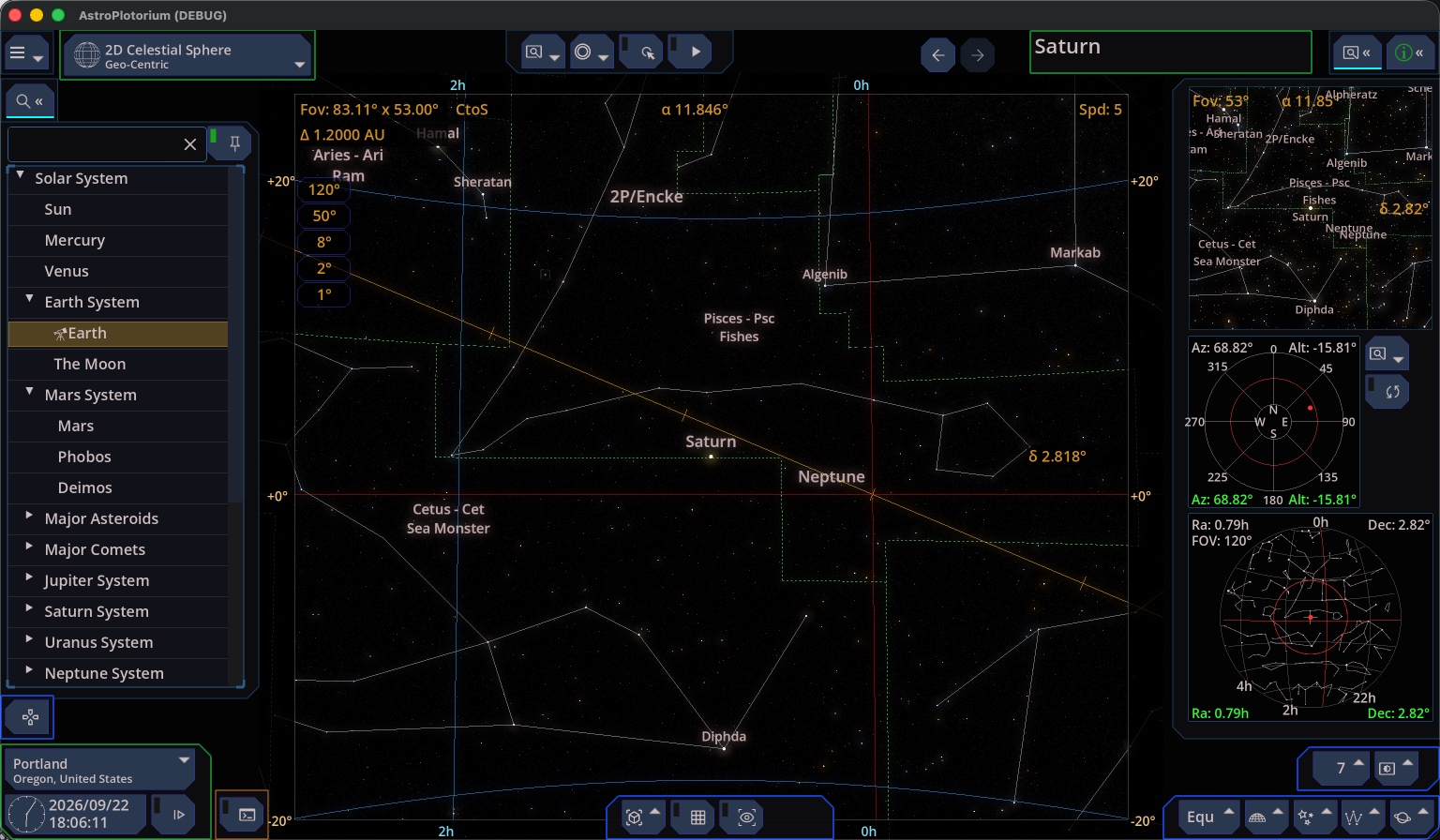
The window is one sky with bars around it. Esc hides the left and right panels and returns them. It does not hide the small charts if those are open. If a menu or a dialog is open, Esc closes that first.
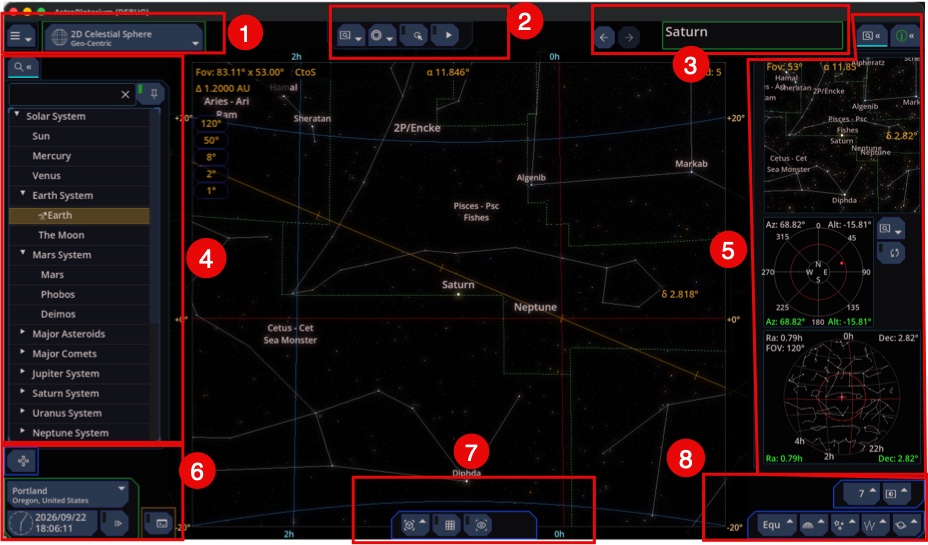
(1) Top left
- Home. App menu: screenshots, your files folder, language, theme, help, acknowledgements, about, the local MCP server, and Exit.
- Main View. Switches the kind of picture in the center. The navigator list on the left changes with this choice.
(2) Top center
View tools for the current picture: field of view, Photo Real, Presentation, on-screen indicators, click-to-select, and a slow camera rotation.
(3) Top right
- Back and Forward. The last targets you opened, including which main view you were in.
- Target name. The object the camera is aimed at. Click it to slew back to that object.
- Side charts. Shows or hides the secondary view and the two sky charts.
- Property panel. (i) icon. Shows or hides the information list for the target.
(4) Left
The navigator. Search is at the top. A pin beside the search keeps the list open after you pick an object. If the pin is off, the list closes after a selection. The telescope mark on a row is the body you are currently looking from. That row cannot be selected as a target in the sky views, because you are already on it.
(5) Right
- Property panel. Names, designations, coordinates, and physical data for the target. The fields change with the kind of object.
- Side charts, when shown:
- A second 3D view of the same scene at its own field of view.
- A polar chart of altitude and azimuth. The red line is the horizon. A mark above it is up (drawn green). A mark below it is under the horizon (drawn red).
- A planisphere of the whole sky, with the main camera’s view marked on it.
(6) Bottom left
- ? Opens a keyboard map for flying and looking.
Shift+F1does the same. - Location. Current site, Change, and Look from target.
- Clock. Local time, and the popup for stepping and playing time.
- Script. Opens the script console.
F12does the same.
(7) Bottom center
Actions for the current target. The buttons change with the object and the view. Typical actions are a jump to the planetarium or the celestial sphere, a view from the Sun or from Earth, orbit the body, a latitude/longitude grid on the body, magnetic-field drawings, and a size comparison.
(8) Bottom right
What is drawn, and how bright it is: coordinate system, grids and landscape, stars and deep-sky labels, constellations, planets and orbits, the magnitude limit, and brightness sliders.