
Here is how to convert an image into a new chart.
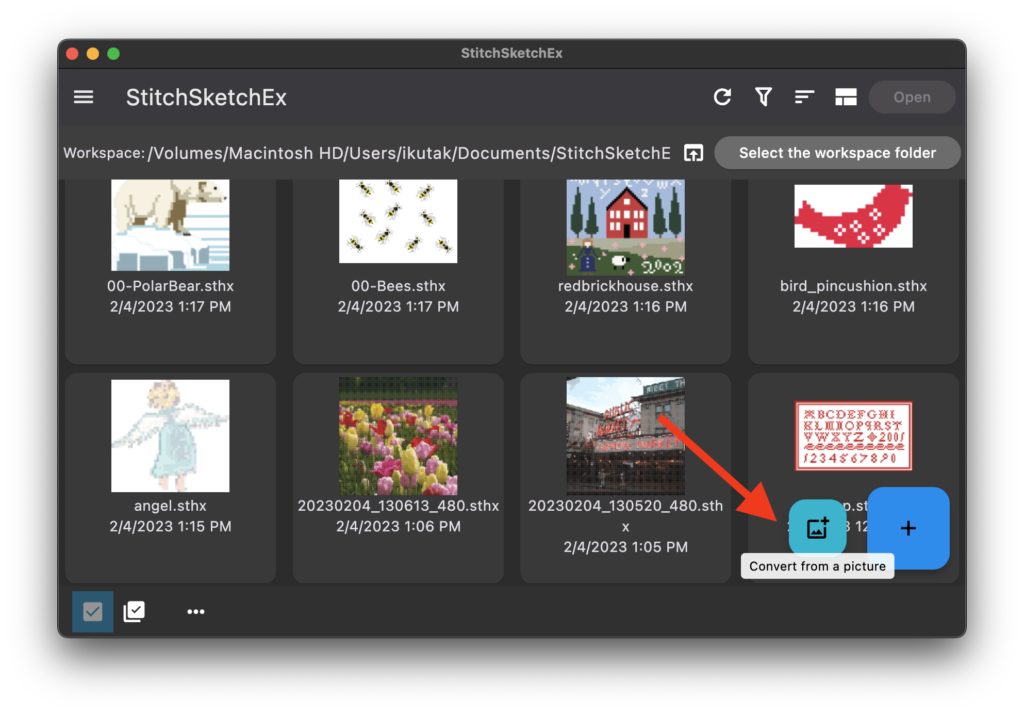
When the App started, the file manager page is shown. Click on a “Convert from a picture” button, which is located at the right bottom of the page.
You could use the App menu button (On the Top Left) to open the App drawer, where you see the “Convert from a picture” menu item.
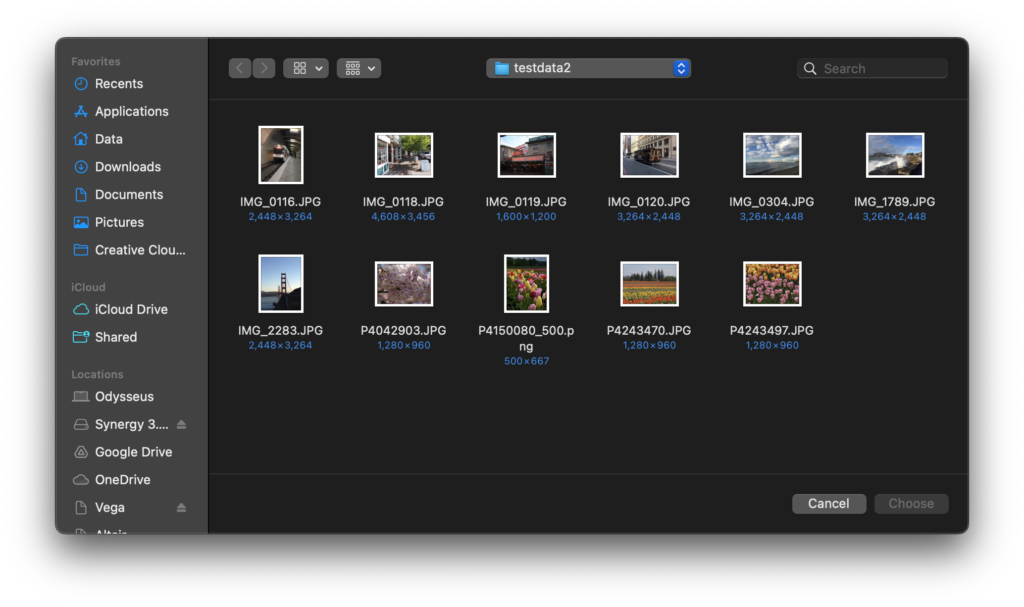
A file selection dialog box appears (Windows & Mac) Select an image to convert.
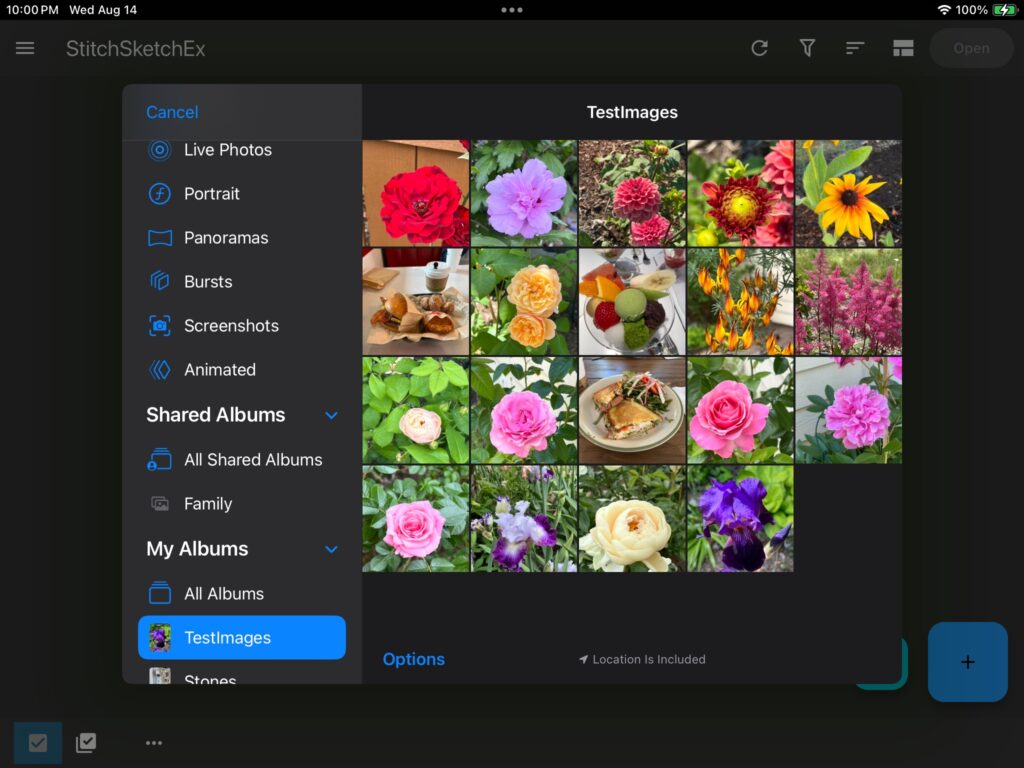
For iOS and Android, you’ll see a photo selector page. (Below example is for iPad)
Once you select an image, (and click “Choose” on Windows/Mac), a “Convert an Image” page appears.
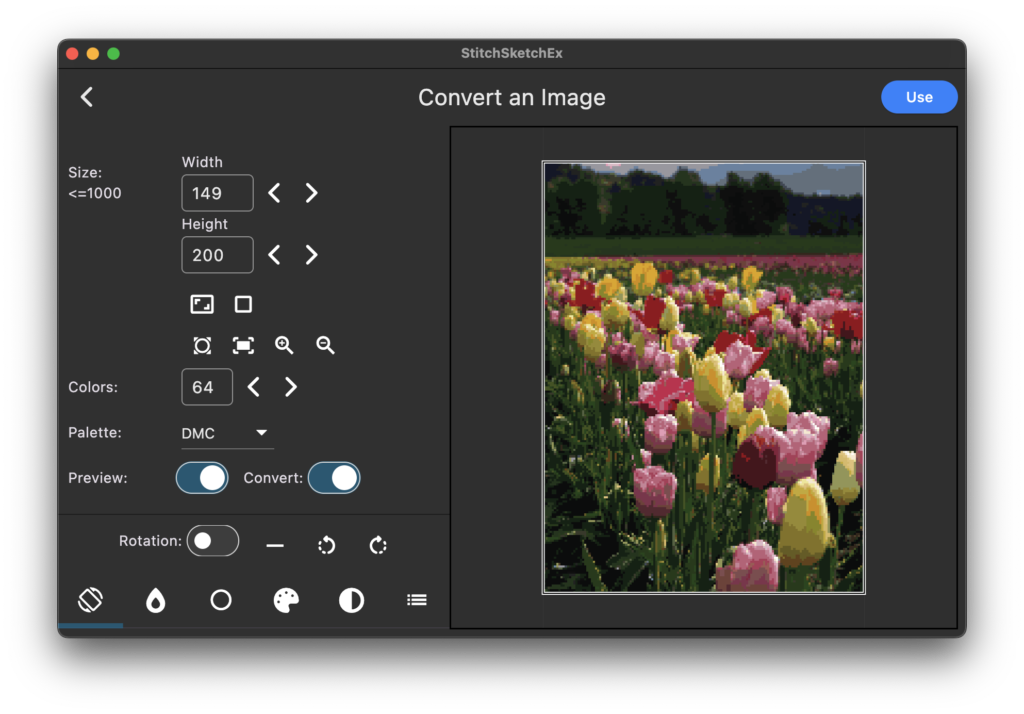
Enter the chart size, the number of colors, the Palette for the new chart.
You can crop/adjust the image color etc. by using the image processing buttons on the left bottom.
Once adjusted done, click on “Use” button.
The editing page appears with the converted image. It should have the color palette with the color code assigned.
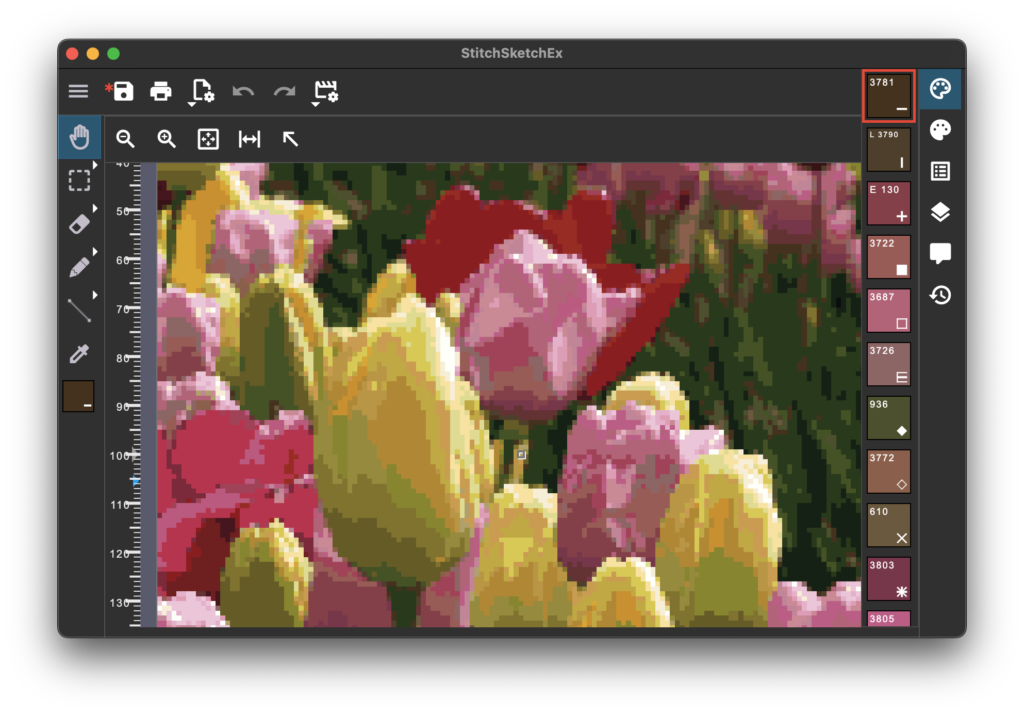
Enjoy drawing!